



One of the best times to check in on the quiet systems that support your photography is before something goes wrong. This guide walks through nine photography maintenance checks that help protect your images, gear, and workflow over time.
These aren’t glamorous tasks, but they’re the difference between a workflow that hums along in the background and one that eventually trips you up at the worst possible moment. Think of this as preventative maintenance, both digital and physical, so you can spend more time creating and less time troubleshooting.
1. Metadata: A Small Copyright Change That Simplifies Everything

This year, I made a change to how I handle copyright metadata. I removed the year entirely.
Here’s why. Copyright protection begins the moment you create an image, not because a year is embedded in the metadata. Including a year doesn’t strengthen your legal protection, but it does introduce ongoing maintenance. Every January, that copyright preset needs to be updated, and if you forget, your metadata appears out of date even though your rights are not.
By simplifying the copyright field to include just my name and copyright notice, I’ve removed a recurring task without giving anything up. It’s cleaner, more accurate long term, and one less thing to remember during imports.
The good news is this is a simple change to make in Lightroom Classic, and you only need to do it once.
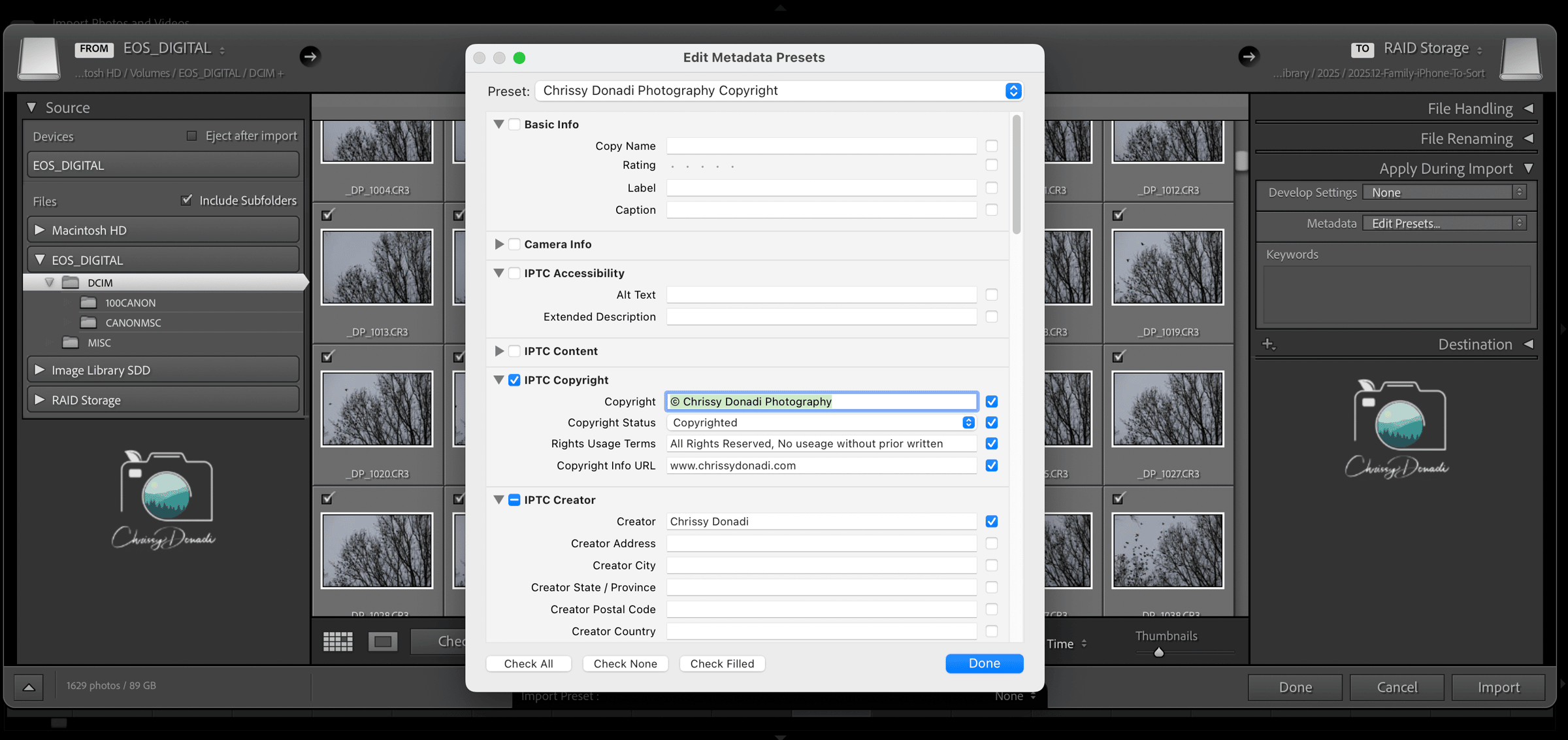
How to Update Your Copyright Preset in Lightroom Classic
- Open the Import Dialog
- In the right-hand panel, expand Apply During Import
- Next to Metadata, choose New or Edit Preset if you already have one
- Enter your copyright information and make sure the blue checkboxes are selected for any fields you want applied consistently
- At the top of the dialog, open the Preset dropdown
- Choose Save Current Settings as New Preset
- Name your preset and click Create, then select Done
This new copyright preset is now saved and can be applied automatically every time you import photos into Lightroom. There’s no need to retroactively update older files unless you want to. From this point forward, your metadata stays correct without annual edits.
2. Check Camera Firmware Updates
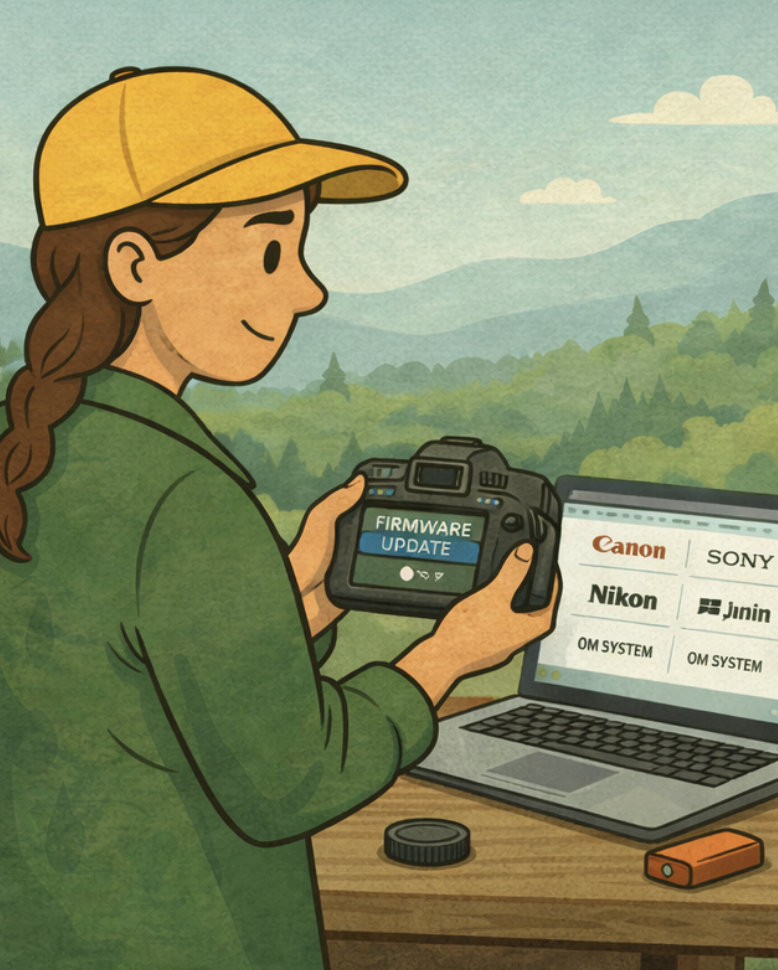
Oh, you know we’ve all skipped them.
Firmware updates are easy to overlook, especially when your camera seems to be working just fine. But manufacturers regularly release firmware updates that fix bugs, improve performance, and sometimes meaningfully enhance autofocus behavior or overall camera stability.
It’s worth taking a few minutes to visit your camera manufacturer’s website and confirm that both your camera body and lenses are running the current firmware version. If you’re a few versions behind, you could be missing improvements that directly impact your experience in the field, even if nothing feels “broken.”
This is a quick check that can quietly improve reliability without changing how you photograph at all.
Firmware Websites by Manufacturer:
A quick note: Firmware updates often require fully charged batteries and careful attention to instructions. Take your time, follow the manufacturer’s steps exactly, and don’t interrupt the process once it begins.
3. Sync Date, Time, and Time Zone Across Camera Bodies

If you only photograph with one body, keeping your date and time accurate still matters for tracking when and where you took each photograph. If you photograph with more than one camera body, this step matters more than you might realize.
When date, time, or time zone settings differ between cameras, imported images can appear out of sequence in Lightroom. That might not feel like a big deal at first, but it becomes frustrating when you’re trying to reconstruct a shoot, compare moments, or locate a specific frame later.
Taking a moment to sync all camera bodies ensures your timestamps line up correctly. In your camera’s menu system (usually under Setup or Settings), set each body to the same date, time, and time zone. Use manual time zone settings if you travel frequently to avoid automatic shifts mid-shoot. To verify sync: take a test photo with each camera at the same moment and check that the timestamps match in Lightroom. That keeps your catalog orderly, your imports predictable, and your archive easier to navigate long after the shoot is over.
4. Calibrate Your Monitor

This is another task that gets pushed aside until you realize it’s been months since the last time you checked your monitor colors. But this is an important task! If you’re editing photos on an uncalibrated monitor, you’re making decisions based on inaccurate information.
Monitor colors drift over time. What looks perfectly exposed or color-balanced on your screen might appear completely different when printed, shared online, or viewed on someone else’s device. This becomes especially problematic if you’re delivering images to clients, submitting work for publication, or printing your photographs.
Monitor calibration ensures that what you see during editing matches reality. It corrects for your display’s natural color shifts and brightness variations, giving you a neutral, accurate starting point for every editing decision you make.
Professional workflows typically call for monthly calibration, but most photographers will see meaningful benefits from calibrating every 2-3 months. I personally use X-Rite’s calibration tools, which attach to your screen, measure its output, and create a custom color profile. While macOS and Windows include basic display calibration utilities, these rely on your eyes to judge neutrality, which defeats the purpose. Hardware calibration removes subjectivity entirely and produces measurably accurate results.
5. Review Your Lightroom Folder and File Naming Conventions
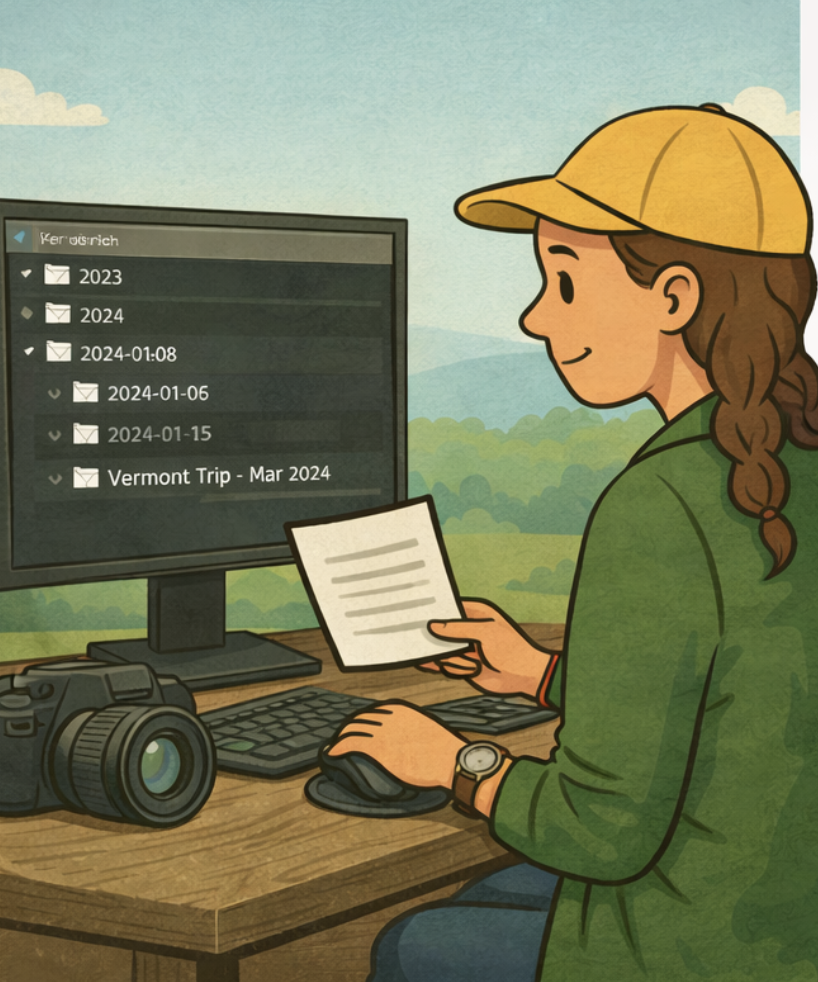
A Lightroom catalog that made sense three years ago might not serve you well today.
As your photography evolves, so does the way you organize it. You might have started with simple date-based folders, then added location names, then project categories. Or maybe you’re still using the default folder structure Lightroom created during your first import years ago. Either way, this is a good moment to evaluate whether your current system still matches how you actually work.
Ask Yourself:
- Can you find specific images quickly, or do you spend time hunting?
- Do your folder names tell you what’s inside, or do you need to open them to remember?
- Are there orphaned folders, duplicates, or files scattered across multiple drives?
- Has your naming convention changed mid-stream, creating inconsistency?
A well-structured Lightroom catalog doesn’t have to be complicated. It just needs to reflect how you naturally think about and search for your work. If you’re looking for more detailed guidance on creating an organizational system that scales with your photography, here’s an article on how to organize Lightroom folders.
6. General Gear Maintenance
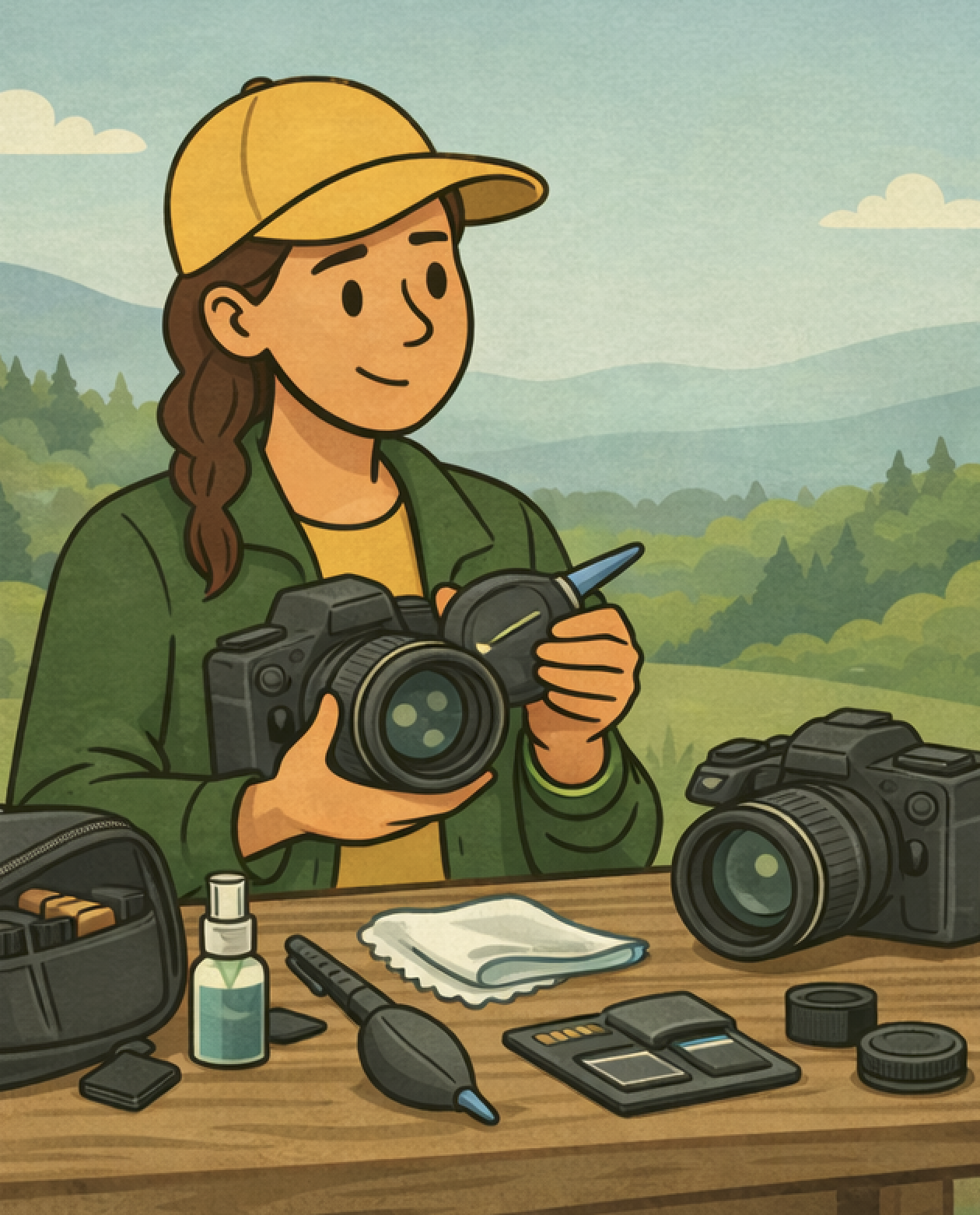
A general gear maintenance day is worth adding to your calendar on a regular basis. While it won’t guarantee that everything behaves perfectly in the field, it does reduce the chances of a surprise hiccup when you’re out creating.
Start by cleaning your camera bodies and lenses, giving the glass a little extra attention. Inspect your sensor and clean it if needed. Disassemble your tripod, clean each section, add lubricant sparingly where appropriate, and put it back together so it’s ready for the next adventure.
Look over your memory cards and check for reliability issues. If you’ve seen warning signs like failed reads, images that won’t open, or the camera occasionally refusing to recognize the card, it’s time to retire it. Even without obvious problems, cards that see heavy use should be replaced every three to five years. Reformat cards in-camera, ideally every time you put one in. While you’re at it, sort through your batteries and retire any that no longer hold a solid charge.
Finally, empty and reset your camera bag. Pull out anything that doesn’t belong, reorganize what does, and yes, finally track down that lens cap stashed in a coat pocket somewhere. These small resets reduce friction and make every outing feel a little smoother.
7. Review Camera Insurance

Gear changes over time, but insurance policies don’t always keep up.
If you have camera insurance, confirm that it still reflects what you actually own. If you’ve added or sold gear over the past year, your coverage may no longer be accurate. And if you don’t currently insure your equipment, it’s a good moment to consider whether it’s time.
Insurance isn’t about expecting disaster, it’s about removing one more source of anxiety from your workflow. If you’re looking for photography-specific coverage, organizations like NANPA offer gear insurance designed specifically for photographers.
8. Check Your Photo Backups!
This is the most important step on the list.
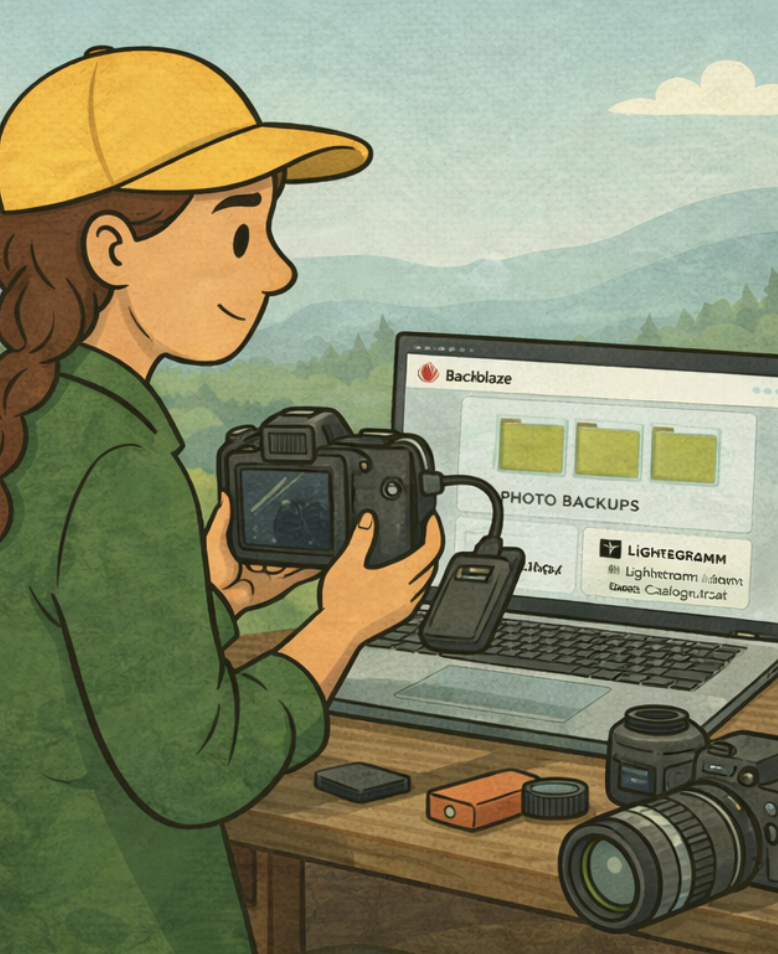
Many photographers have backups in place, but far fewer regularly check that those backups actually work. A backup that isn’t verified can quietly turn into hope. Drives can fail. Cloud services can lose connection. Files can corrupt without warning.
Take a few minutes to confirm where your backups live. Open them. Make sure your Lightroom catalog and image files actually load. Confirm that your most recent work is included. These small checks are what make a backup strategy real instead of theoretical.
For off-site backups, I personally use Backblaze (referral link). It provides unlimited cloud backup for both internal and connected external drives, runs quietly in the background, and alerts you if a drive hasn’t been seen in a while. Once the initial upload is complete, updates are automatic and unobtrusive. I know multiple professional photographers who have recovered entire libraries thanks to Backblaze, and that real-world reliability matters to me.
9. Check Hard Drive Health: The Foundation Beneath Everything

Your primary storage drive is easy to take for granted until it’s not working anymore.
Hard drives don’t announce when they’re beginning to fail. They slow down gradually. They develop bad sectors silently. They run for years without issue, and then one day they don’t. By the time you notice something’s wrong, you’re often in recovery mode instead of prevention mode.
Checking your drive health regularly gives you advance warning. It lets you catch problems early, back up critical data, and replace aging drives before they become emergencies.
What to Look For:
Modern drives include S.M.A.R.T. (Self-Monitoring, Analysis, and Reporting Technology) data that tracks performance and flags potential issues. You’re checking for things like:
- Reallocated sectors (signs of physical damage)
- Read/write errors
- Drive temperature
- Total power-on hours
- Overall health status
How to Check Drive Health:
Several free and paid tools can read S.M.A.R.T. data and present it in plain language:
- macOS: Disk Utility (built-in, but limited) or DriveDx (more detailed)
- Windows: CrystalDiskInfo (free, reliable, easy to read)
- Cross-Platform: Hard Disk Sentinel or HDDScan
Run one of these tools, and it will tell you whether your drive is healthy, showing early warnings, or actively failing.
When to Replace a Drive:
- If S.M.A.R.T. status shows warnings or errors
- If the drive is noticeably slower than it used to be
- If it’s making unusual clicking, grinding, or beeping sounds
- If it’s been in continuous use for 5+ years (especially mechanical drives)
SSDs typically outlast mechanical hard drives, but they’re not immune to failure. Check them just as regularly.
A Note on External Drives:
If you rely on external drives for storage or backup, check those too. Portable drives take more physical abuse than internal ones and can fail without obvious warning. Disconnect and reconnect them during the check to confirm they’re recognized properly and respond quickly.
Checking drive health takes ten minutes. Recovering from an unexpected drive failure takes days or weeks, and sometimes, it’s not possible at all. This is one of those small preventative steps that becomes significant only in hindsight, but by then, it’s too late.

+ show Comments
- Hide Comments
add a comment